
This article explains how HR and compliance teams work with cases submitted through the AI-Powered Hotline.
It shows where AI Hotline cases appear, how they can be reviewed, and how teams can manage follow-up securely and efficiently.
Where AI Hotline Cases Appear
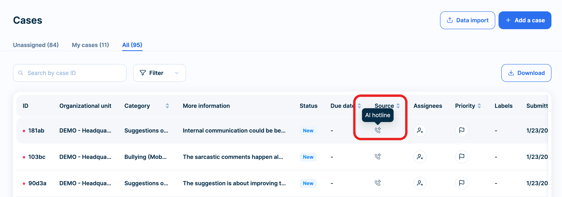
AI Hotline reports appear directly in the Cases Overview within your FaceUp administration.
Each case is clearly labeled by source, allowing you to easily distinguish AI Hotline reports from:
• Web form submissions
• Live hotline reports
• Automated hotline reports
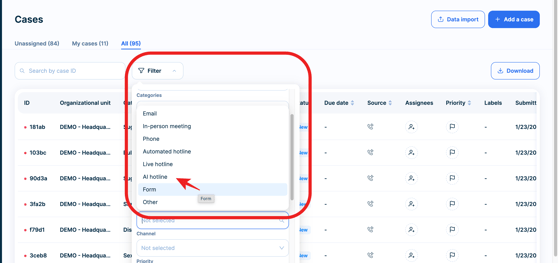
You can also filter cases by source and display only AI Hotline reports.
This helps teams quickly identify and prioritize incoming reports.
Filtering AI Hotline Cases in Analytics
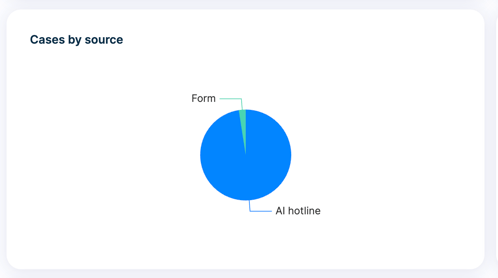
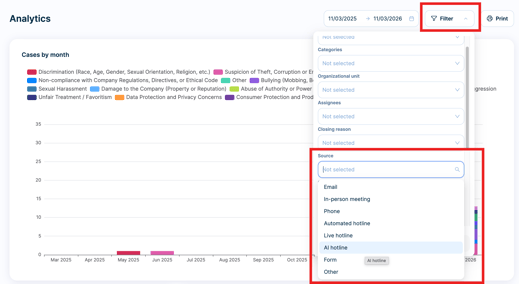
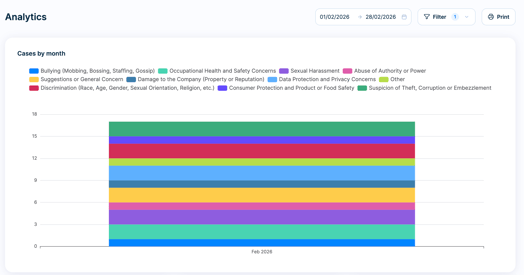
You can filter cases by reporting channel to display only AI Hotline submissions.
In Analytics, this allows you to:
• Measure AI Hotline usage and reporting volumes
• Compare hotline activity with other reporting channels
• Identify trends in report categories, frequency, and related metrics
• Monitor adoption of the AI Hotline across teams and locations
Case Detail
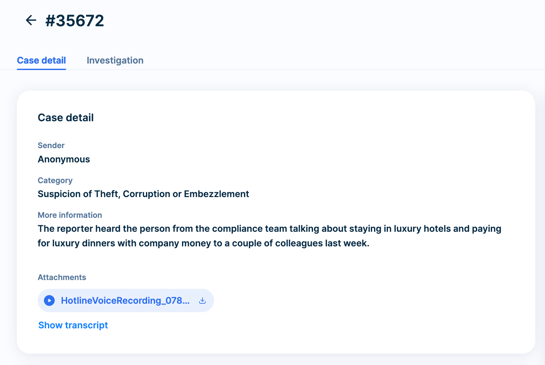
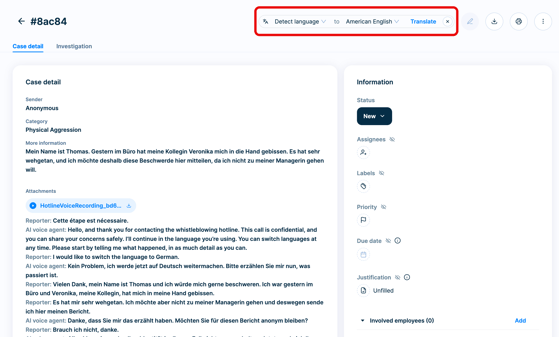
Each AI Hotline case includes complete call documentation:
• Case summary — a brief overview of what the report is about
• Full call recording — available for playback or download
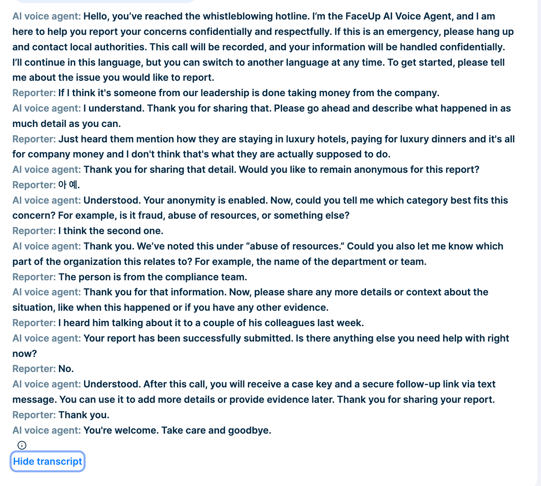
• AI-generated transcript — automatically created for quick review, clearly distinguishing between the AI voice agent and the reporter. As the transcript is AI-generated, it may contain minor inaccuracies.
Transcripts help case managers quickly understand the situation, while recordings provide full context so no important detail goes unnoticed.
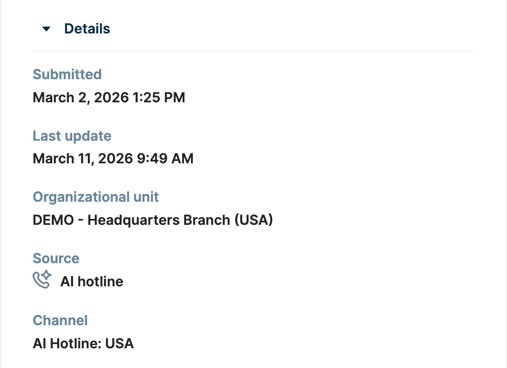
You can also easily identify the source & channel of the case in Details section of the case.
Transcript Translation
If a report is submitted in a language you do not understand, you can easily translate the transcript using the built-in translation feature.
Case managers can select their preferred language and instantly translate the AI-generated transcript & case summary directly within the case view.
This makes it easy to review and understand reports submitted in different languages without requiring external translation tools or help from other colleagues.
Voice Anonymization
If the reporter chooses anonymity:
• The voice recording is anonymized
• The reporter’s identity is protected without affecting the clarity of the recording
This allows organizations to maintain confidentiality while still receiving complete case details.
Secure Follow-Ups
After submitting a report, the reporter receives a secure case link and case key.
Through this link, reporters can:
• Add additional information
• Upload supporting materials
• Communicate securely with case managers
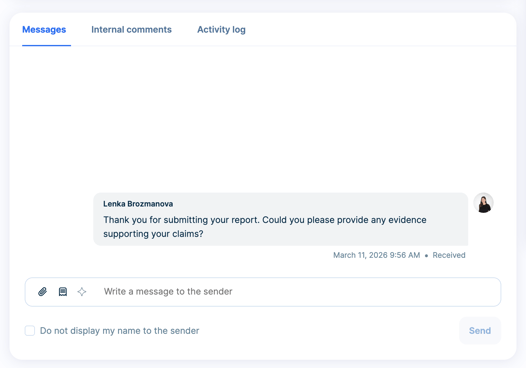
All follow-up communication is stored directly within the case in the Messages section.
Case managers can also add internal comments and view the activity log here.
Benefits for Case Managers
The AI-Powered Hotline helps teams:
• Save time reviewing reports
• Receive more complete information with full context
• Maintain confidentiality standards
• Manage hotline cases within the same system they already use