---
title: Paylocity and FaceUp native integration guide
description: Step-by-step guide to setting up the FaceUp and Paylocity integration, enabling secure employee data sync and structured whistleblowing case management & investigations.
---
[Skip to content](https://support.faceup.com/paylocity-and-faceup-native-integration-guide#main-content)
English
Show submenu for translations
[Contact Support](https://support.faceup.com/kb-tickets/new?hsLang=en)
[](https://www.faceup.com/en)
- [Help center](https://support.faceup.com/en)
- [System status](https://status.faceup.com/)
- [Trust Center](https://trust.faceup.com/)
Open main navigation
Close main navigation
- [Help center](https://support.faceup.com/en)
- [System status](https://status.faceup.com/)
- [Trust Center](https://trust.faceup.com/)
- English
Show submenu for translations
- [Contact Support](https://support.faceup.com/kb-tickets/new)
- [Sign In](https://www.admin.faceup.com/)
[Sign In](https://www.admin.faceup.com/)
How can we help you?
- There are no suggestions because the search field is empty.
1. [FaceUp Help Center](https://support.faceup.com/?hsLang=en)
2. [Integrations](https://support.faceup.com/integrations?hsLang=en)
3. [HR Systems & Employee Sync](https://support.faceup.com/integrations?hsLang=en#hr-systems-employee-sync)
# Paylocity and FaceUp native integration guide

The FaceUp integration with Paylocity provides HR and compliance teams with a secure and structured way to connect their employee data to a dedicated whistleblowing and case-management system. Employee records sync automatically from Paylocity to FaceUp, ensuring your reporting platform always reflects your current workforce.
When a report is submitted, you can quickly link the relevant employees directly to the case. This keeps investigations organized, reduces manual work, and ensures accurate documentation throughout the process. You can also filter and review cases by employee, helping you identify patterns and gain clearer visibility into workplace trends.
#### **Setting up the integration**
The setup process is straightforward and can be completed by following the step-by-step guide below. During configuration, the FaceUp team will assist with connecting the systems using your Company ID and supporting the API access request within Paylocity.
**The integration is configured through the following steps:**
**1. Request API Access in Paylocity**
Log in to your Paylocity account and submit the integration request via the Paylocity Marketplace. There are no additional fees associated with enabling the API access for the FaceUp integration.
**2. Request Connection in FaceUp**
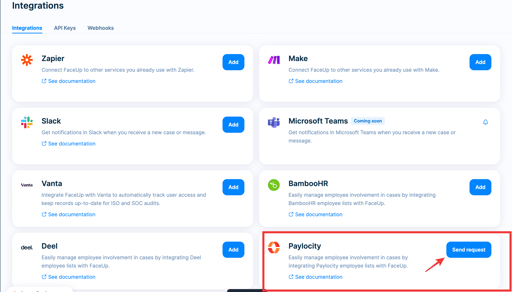
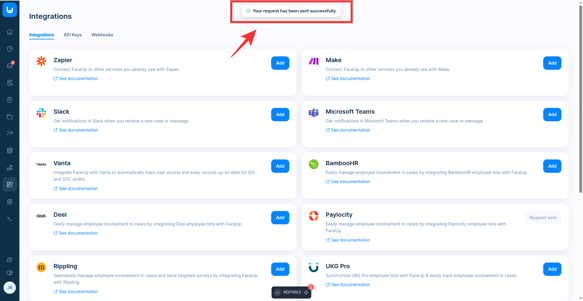
In the FaceUp Admin panel, navigate to Integrations and submit a request to connect your Paylocity account.
**3. Connection Approval & Activation**
Once both requests are submitted, the FaceUp team will coordinate with Paylocity to approve and activate the connection. You will receive confirmation once the integration has been successfully established.
**4. Automatic Employee Sync**
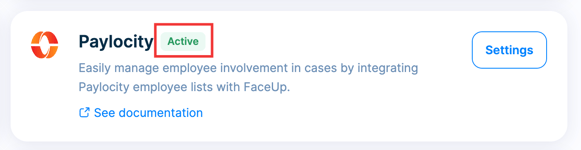
After activation, the integration will appear as Active in FaceUp. Employee records from Paylocity will automatically sync once per day.
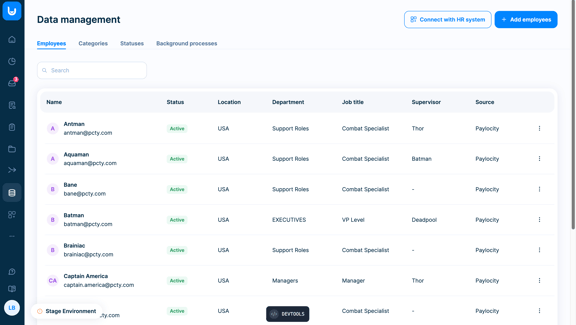
If an employee leaves, they won’t be removed from your FaceUp account. For compliance and data-management reasons, they are simply marked as **inactive**, so you don’t lose any case history.
#### **Working with Paylocity People Data in FaceUp**
Once the integration is connected, you can use your synced Paylocity employee list directly inside FaceUp to manage cases more accurately and keep your investigations organized.
##### ***Assign employees to a case***
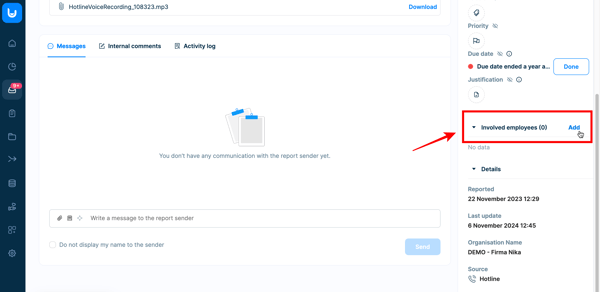
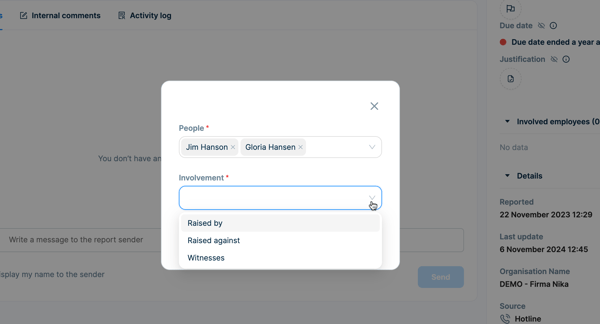
Open any report in FaceUp and use the **Involved Employees** panel to add people connected to the situation.
You can assign employees as:
- **Raised by**
- **Raised against**
- **Witness**
This helps you keep the case structured, track who was involved, and create clearer insights later.
**
**
Employees you assign will **not** receive notifications — this is only for internal case management and analytics. You can also track involved employees in your investigations.
##### ***View and analyze cases linked to specific employees*** You can easily see how individual employees are connected to cases, helping you spot patterns, understand involvement, and keep your investigations organized. Go to Data Management → Employees to view your synced Paylocity employee list. Select any employee to see: • How many reports they’re connected to • Their type of involvement • A quick link to each report 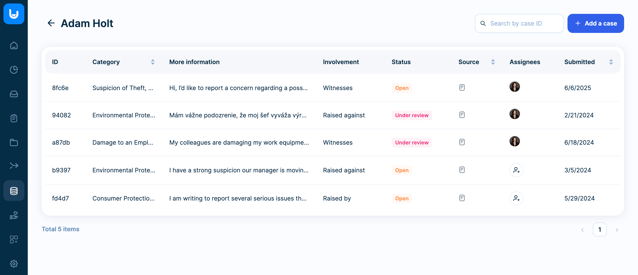 If you prefer to jump straight from the Cases overview page, use the Filter → People option to instantly pull up all cases involving a specific employee.
##### ***Send surveys to your synced Paylocity employees***
With the integration in place, you can send FaceUp surveys directly to your Paylocity employee list — either to everyone or to selected individuals.
Go to **Surveys** in your FaceUp administration, open the survey you want to send (or create a new one), and publish it.
Click **Share → Share via email**.
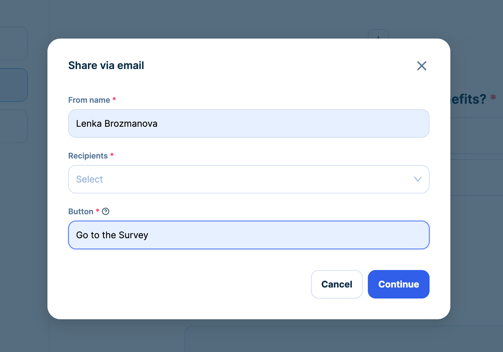
In the email setup, you can:
- Set the **From** name
- Choose which employees should receive the survey
- Customize the button text (the call-to-action in the email)
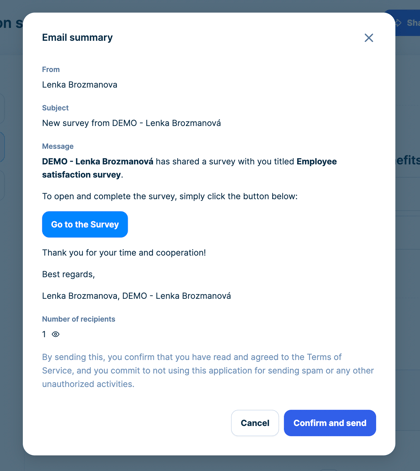
Review the summary and click **Confirm and Send**.
Your employees will receive the survey by email, and you can track all responses right inside FaceUp.
- [General](https://support.faceup.com/general?hsLang=en)
- [Administration features](https://support.faceup.com/administration-features?hsLang=en#main-content)
- [Managing cases](https://support.faceup.com/administration-features?hsLang=en#managing-cases)
- [Investigations](https://support.faceup.com/administration-features?hsLang=en#investigations)
- [Managing members](https://support.faceup.com/administration-features?hsLang=en#managing-members)
- [Settings](https://support.faceup.com/administration-features?hsLang=en#settings)
- [Channels](https://support.faceup.com/channels?hsLang=en#main-content)
- [Form](https://support.faceup.com/channels?hsLang=en#form)
- [Automated hotline](https://support.faceup.com/channels?hsLang=en#automated-hotline)
- [AI-powered Hotline](https://support.faceup.com/channels?hsLang=en#ai-powered-hotline)
- [Live hotline](https://support.faceup.com/channels?hsLang=en#live-hotline)
- [Survey](https://support.faceup.com/channels?hsLang=en#survey)
- [Integrations](https://support.faceup.com/integrations?hsLang=en#main-content)
- [HR Systems & Employee Sync](https://support.faceup.com/integrations?hsLang=en#hr-systems-employee-sync)
- [Notifications & Communication Tools](https://support.faceup.com/integrations?hsLang=en#notifications-communication-tools)
- [Automation & Workflow Tools](https://support.faceup.com/integrations?hsLang=en#automation-workflow-tools)
- [API & Advanced Integrations](https://support.faceup.com/integrations?hsLang=en#api-advanced-integrations)
- [Compliance & GRC Tools](https://support.faceup.com/integrations?hsLang=en#compliance-grc-tools)
- [Privacy & Security](https://support.faceup.com/privacy-security?hsLang=en)
- [Partner administration](https://support.faceup.com/partner-administration?hsLang=en)
[](https://www.faceup.com/en)
FaceUp Technology © 2025