
The AI Hotline enables employees and third parties to report concerns through a secure AI-powered voice channel, helping organizations make reporting more accessible and effective.
You can activate the AI Hotline reporting channel in two ways:
-
Request setup through your FaceUp account manager, or
-
Request it directly within your FaceUp platform.
Note: The AI-powered Hotline is a paid add-on and may involve additional charges depending on your current subscription.
Choose How to Set Up the AI Hotline
You can activate the AI Hotline in two ways:
Option 1 — Contact Your Account Manager
Reach out to your FaceUp account manager and we will set up the AI Hotline for you. Let us know which country the number should be located in, what the default language should be, and whether you prefer a landline or toll-free number. If you’re not sure, our support team will help you choose the best option.
Option 2 — Set It Up Yourself
You can configure and activate the AI Hotline directly in your FaceUp account. The steps are explained below.
Setting Up the AI Hotline in Your FaceUp Account
Follow these steps to configure the AI-powered Hotline yourself:
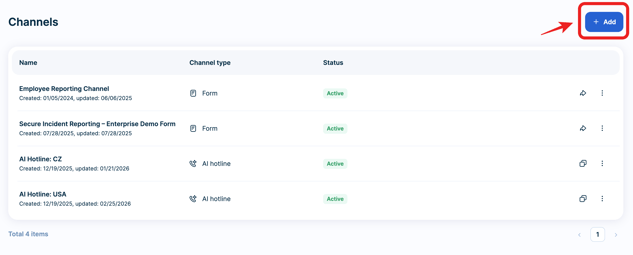
1. Open your FaceUp Administration and navigate to: Admin → Channels
2. Click Add Channel and select AI-Powered Hotline from the list of available reporting channels.
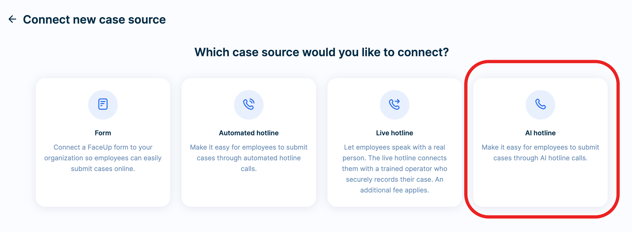
3. Fill in the AI Hotline number request
Enter the required details for your new AI Hotline number/reporting channel:
• Hotline name – visible only within your FaceUp administration and case management
• Default hotline language – determines the language the AI agent uses for the welcome message & the conversation with the reporters (Each hotline number has one default language, but callers can switch languages during the call and the AI agent will adapt automatically.)
• Country where the number will be registered
• Number type:
a) Landline
Callers pay according to their local call tariffs. You are charged only for incoming calls (per-minute fee), which are deducted from your credits.
b) Toll-free
Free for callers. You are charged a per-minute fee depending on the selected country. Pricing is available upon request.
When you're done, click Save to submit your request.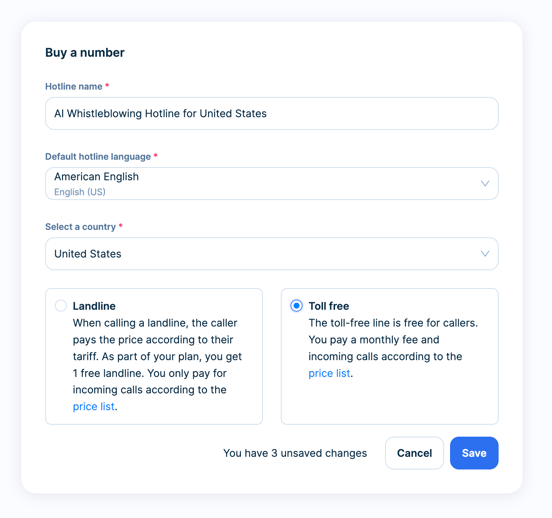
4. Once submitted, your request will be processed. You will receive a confirmation email informing you that we received your request & the setup of your new AI Hotline is underway.
5. The hotline will appear in the Channels Overview, but it will not be clickable yet. Its status will display "In processing". You will only be able to use the hotline once its status changes to Active. 
6. We will process your request. The processing time depends on the country where the number will be located. Some numbers are available immediately, while others may take anywhere from a few days to several weeks.
Once the request is processed and the number is registered, the “In processing” status will change to “Active”, and the hotline will be activated automatically.

Every first new AI hotline is automatically credited with a starting balance:
• Starter & Professional plans:
10 USD / 10 EUR / 7.5 GBP / 250 CZK
• Enterprise plan:
100 USD / 100 EUR / 75 GBP / 2500 CZK
To learn more about how to top up your credits, check this article.
Steps to follow after your AI-powered hotline is activated
1. Review Hotline Settings
Once the hotline becomes Active, you can review and adjust its settings before sharing it with employees.
You can:
• Edit the hotline name (visible only in your administration and case management)
• Change the default language for the AI voice agent
• Define an emergency phone number (optional) — learn more about this feature here
• Select organizational unit for this channel
• Select categories for this channel
• Disable voice anonymization (anonymization means reporters will have the option to anonymize their voice, we recommend keeping anonymization enabled for maximum privacy and safety)
We recommend reviewing all settings carefully to ensure the hotline is configured according to your organization’s needs before launch.
2. Test the Hotline Before Launch
Before sharing the hotline with your employees and other stakeholders, you can test it internally to make sure everything works as expected.
You can place test calls to:
• Verify that the default language is applied correctly
• Experience the reporting flow from a caller’s perspective
• See how transcripts and call recordings are generated
• Confirm that cases appear correctly in the FaceUp administration
• Ensure the reporter receives the secure case key and follow-up link via SMS
Test calls create real cases, but you can delete them later.
3. Deactivating the Hotline
You remain in full control of the hotline’s availability.
If needed, you can temporarily disable the hotline channel. While disabled, the hotline number cannot receive calls.
You can do this by clicking the three dots on the hotline channel and selecting Deactivate.

Once reactivated, the hotline becomes immediately available to callers again.