---
title: Managing closing reasons
description: Closing reasons help you standardize how cases are resolved and give your compliance team clearer insight into case outcomes.
---
[Skip to content](https://support.faceup.com/managing-closing-reasons#main-content)
- [English](https://support.faceup.com/managing-closing-reasons)
- [Čeština](https://support.faceup.com/cs/sprava-duvodu-uzavreni)
English
Show submenu for translations
[Contact Support](https://support.faceup.com/kb-tickets/new?hsLang=en)
[](https://www.faceup.com/en)
- [Help center](https://support.faceup.com/en)
- [System status](https://status.faceup.com/)
- [Trust Center](https://trust.faceup.com/)
Open main navigation
Close main navigation
- [Help center](https://support.faceup.com/en)
- [System status](https://status.faceup.com/)
- [Trust Center](https://trust.faceup.com/)
- - [English](https://support.faceup.com/managing-closing-reasons)
- [Čeština](https://support.faceup.com/cs/sprava-duvodu-uzavreni)
English
Show submenu for translations
- [Contact Support](https://support.faceup.com/kb-tickets/new)
- [Sign In](https://www.admin.faceup.com/)
[Sign In](https://www.admin.faceup.com/)
How can we help you?
- There are no suggestions because the search field is empty.
1. [FaceUp Help Center](https://support.faceup.com/?hsLang=en)
2. [Administration features](https://support.faceup.com/administration-features?hsLang=en)
3. [Managing cases](https://support.faceup.com/administration-features?hsLang=en#managing-cases)
# Managing closing reasons
## Closing reasons help you standardize how cases are resolved and give your compliance team clearer insight into case outcomes.
In FaceUp, members of the administration can manage closing reasons in the **Data management** section. This allows organizations to define resolution classifications that match their internal compliance procedures, investigation outcomes, and reporting standards.
By customizing closing reasons, case managers can select the most accurate resolution when closing a case, which improves data quality, ensures audit-ready documentation, and enables more reliable analytics and reporting.
---
### Quick overview
- Closing reasons define **how a case was resolved**.
- They are required when **closing a case**.
- You can **create, edit, activate, deactivate, or delete** them.
- Each account has **4 default closing reasons**.
- You can have **up to 15 closing reasons** in total.
- Closing reasons can only be deleted **if they haven’t been used in a closed case**.
---
### Where to manage closing reasons
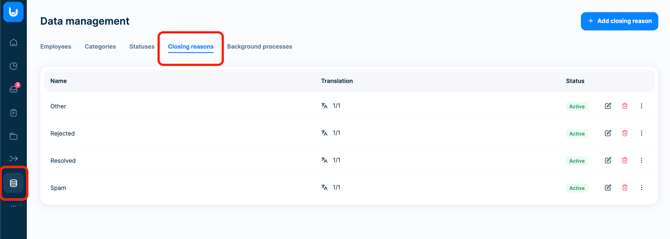
You can manage closing reasons in **Data management → Closing reasons**
In this section, administrators can:
- Create new closing reasons.
- Edit existing ones.
- Activate or deactivate closing reasons.
- Delete unused closing reasons.
This gives you full flexibility to adapt resolution categories to your organization’s investigation workflow.
---
### Default closing reasons
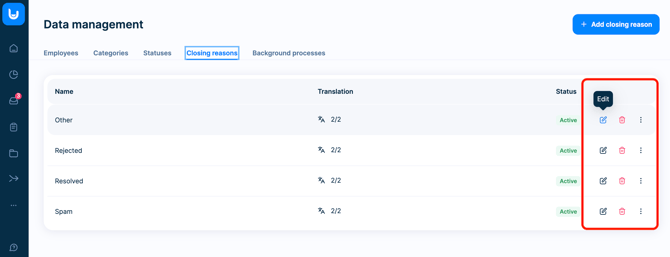
Every FaceUp account includes four default closing reasons:
- **Other**
- **Rejected**
- **Resolved**
- **Spam**
These default reasons can be:
- **Renamed**
- **Activated** / **Deactivated**
- **Deleted** (if they haven’t been used in a closed case)
This allows you to adjust the system terminology to match your organization’s internal compliance framework.
---
### Creating custom closing reasons
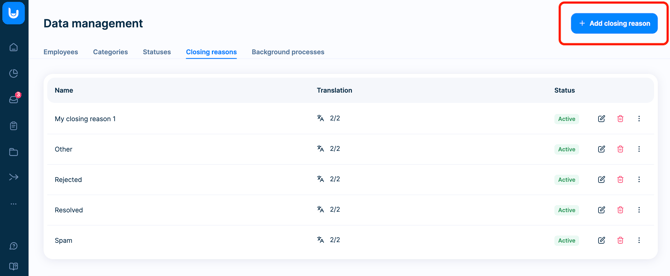
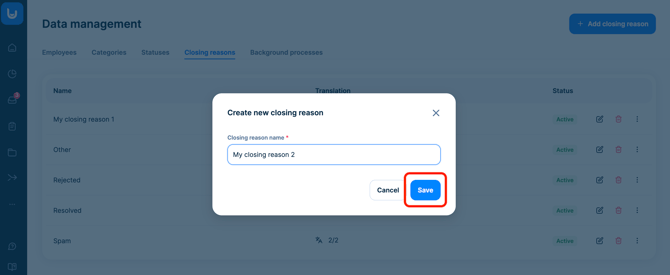
In addition to the default options, you can create your own closing reasons.
Custom closing reasons help you categorize case outcomes more precisely and improve reporting across your whistleblowing or compliance program.
Both **default and custom closing reasons can be edited or deleted at any time**, as long as they haven’t been used in a closed case.
The maximum number of closing reasons in one account is **15**.
---
### Translations of closing reasons
If your organization uses multiple languages in its reporting channels, you can also manage **closing reasons in multiple languages**.
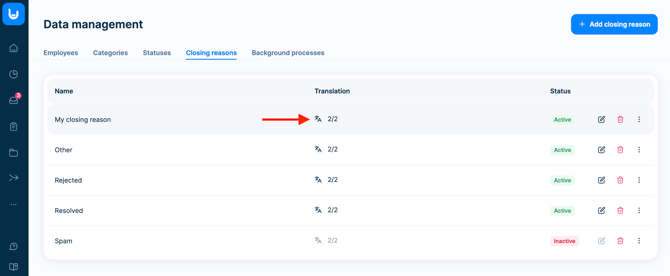
Default closing reasons are **automatically translated** by the system.
For custom closing reasons created by users, translations can be added manually. To do this, click the **Translations icon** located in the row of the specific closing reason and add translations for the languages used in your reporting channels.
This ensures that closing reasons are displayed correctly across different language versions of your case management interface.
---
### Activating or deactivating closing reasons
Sometimes you may want to stop using certain closing reasons but still keep them for historical reporting.
In that case, you can **deactivate** them.
Inactive closing reasons:
- **Will not appear as an option when closing a case**.
- **Remain visible in historical data and analytics**.
To activate or deactivate a closing reason:
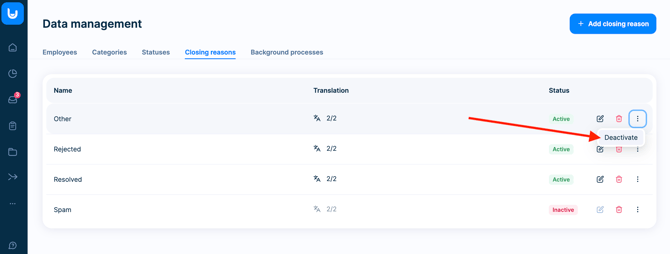
1. Go to **Data Management → Closing reasons**.
2. Click the **three-dot menu** at the end of the closing reason row.
3. Select **Activate** or **Deactivate**.
This allows you to keep your resolution categories clean and consistent while preserving historical data.
---
### Tip: Changing the closing reason of a closed case
If you need to change the closing reason of a case that has already been closed, you’ll first need to **reopen the case**.
To do this:
1. Change the case status back to **Open**.
2. Close the case again.
3. Select the correct **closing reason**.
This ensures the case documentation remains accurate and complete.
---
### Example closing reasons used by compliance teams
Many organizations customize closing reasons to better reflect their internal outcomes.
Common examples include:
**Investigation outcomes**
- Policy violation confirmed
- No evidence found
- Unsubstantiated claim
**Resolution types**
- HR resolution
- Management action taken
- Training required
**Administrative outcomes**
- Duplicate report
- Report outside scope
- Insufficient information
Well-structured closing reasons help compliance teams better understand trends, identify risks, and improve internal reporting.
---
### Best practice for compliance teams
To get the most value from your case analytics, we recommend:
- Keeping closing reasons **clear and consistent**.
- Aligning them with **investigation outcomes**.
- Limiting them to **meaningful categories**.
- Reviewing them periodically as your compliance program evolves.
When used consistently, closing reasons turn case management into a valuable source of compliance insights - not just a documentation tool.
- [General](https://support.faceup.com/general?hsLang=en)
- [Administration features](https://support.faceup.com/administration-features?hsLang=en#main-content)
- [Managing cases](https://support.faceup.com/administration-features?hsLang=en#managing-cases)
- [Investigations](https://support.faceup.com/administration-features?hsLang=en#investigations)
- [Managing members](https://support.faceup.com/administration-features?hsLang=en#managing-members)
- [Settings](https://support.faceup.com/administration-features?hsLang=en#settings)
- [Channels](https://support.faceup.com/channels?hsLang=en#main-content)
- [Form](https://support.faceup.com/channels?hsLang=en#form)
- [Automated hotline](https://support.faceup.com/channels?hsLang=en#automated-hotline)
- [AI-powered Hotline](https://support.faceup.com/channels?hsLang=en#ai-powered-hotline)
- [Live hotline](https://support.faceup.com/channels?hsLang=en#live-hotline)
- [Survey](https://support.faceup.com/channels?hsLang=en#survey)
- [Integrations](https://support.faceup.com/integrations?hsLang=en#main-content)
- [HR Systems & Employee Sync](https://support.faceup.com/integrations?hsLang=en#hr-systems-employee-sync)
- [Notifications & Communication Tools](https://support.faceup.com/integrations?hsLang=en#notifications-communication-tools)
- [Automation & Workflow Tools](https://support.faceup.com/integrations?hsLang=en#automation-workflow-tools)
- [API & Advanced Integrations](https://support.faceup.com/integrations?hsLang=en#api-advanced-integrations)
- [Compliance & GRC Tools](https://support.faceup.com/integrations?hsLang=en#compliance-grc-tools)
- [Privacy & Security](https://support.faceup.com/privacy-security?hsLang=en)
- [Partner administration](https://support.faceup.com/partner-administration?hsLang=en)
[](https://www.faceup.com/en)
FaceUp Technology © 2025